Calculation Point Family Management
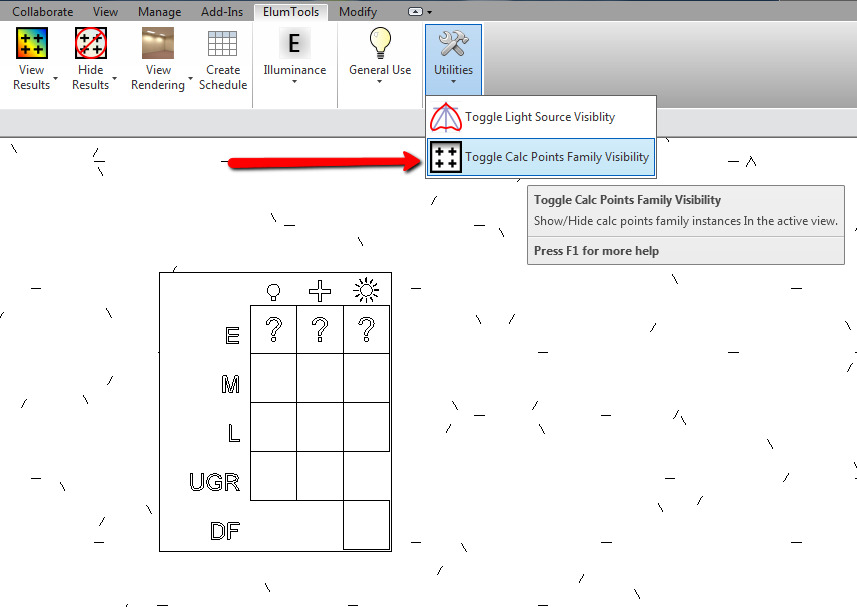
Every time a calculation grid is added to the project, ElumTools places an instance of the ElumTools Calculation Points Family into the Revit model. This can be a useful visual indicator to determine where calculation points have been placed. However, it is sometimes convenient to hide the Calculation Points Family. This can be done using the Toggle Calc Points Family Visibility command as shown below.
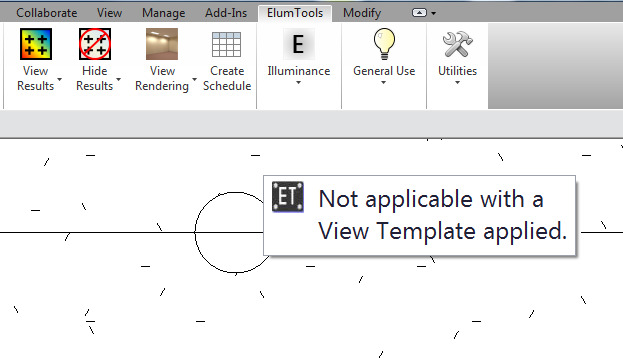
The main caveat is the command will not hide the family if the active view has a View Template applied. You are instead greeted with the tool tip below and the Calculation Points Family remains visible.
What to do? Any View Template can be modified to hide the Calculation Points Family. The family is in its own subcategory and can be hidden, just as any other subcategory can be hidden in Revit.
Now suppose you’d like to hide the Generic Models category, but leave the ElumTools Calculation Points subcategory visible. This can easily be accomplished by a few clicks on the Filters Tab of the Visibility/Graphics dialog.
Step 1. Enable Generic Models in Visibility/Graphics.
Step 2. Create a new Filter.
Create a Filter that hides all Generic Model families whose Family Name does not contain the string “ElumTools”. This methodology can be applied to either a View Template, or the Visibility Graphics settings of any View in the Project.